[C#]クリップボードの内容を1行づつ読み込む

クリップボードに入っているテキストを、1行づつ取り出して処理します。
サンプルでは、行番号を付与した上で、TextBoxに結果を表示しています。

using System.IO;
 
private void button1_Click( object sender, EventArgs e ) {
 
    // クリップボードのテキストをストリームとして読み込む
    using( StringReader reader = new StringReader( Clipboard.GetText() ) ) {
        string line;
        int lineNo = 1;
        textBox1.Clear();
 
        // 最後の行まで、1行づつ読み込みを行う
        while( (line = reader.ReadLine() ) != null ) {
 
            // 読み込み結果を行番号つきでTextBoxに出力
            textBox1.AppendText( lineNo + ": " + line + Environment.NewLine );
            lineNo++;
        }
    }
 
}


[MySQL]ロックタイムアウト時間を変更する (ERROR 1205 (HY000): Lock wait timeout exceeded; try restarting transaction)

MySQLでInnoDBを使用している場合、ロックタイムアウトの時間は、innodb_lock_wait_timeoutパラメータで管理されています。
このパラメータは、MySQL5.5の場合セッション単位で指定する事が可能です。

実際にどの様な振る舞いをするかを実験してみました。

準備

CREATE TABLE test01 (
	key1	INT,
	key2	INT,
	VALUE   INT,
	PRIMARY KEY( key1, key2 )
) ENGINE=innodb;


セッション1

-- トランザクション開始
mysql> START TRANSACTION;
Query OK, 0 ROWS affected (0.00 sec)
 
 
-- データを登録
mysql> INSERT INTO test01 VALUES( 1, 6, 100 );
Query OK, 1 ROW affected (0.00 sec)


セッション2

-- トランザクション開始
mysql> START TRANSACTION;
Query OK, 0 ROWS affected (0.00 sec)
 
-- 現在のロックタイムアウト値(デフォルトは50sec)
mysql> SHOW VARIABLES LIKE 'innodb_lock_wait_timeout';
+--------------------------+-------+
| Variable_name            | VALUE |
+--------------------------+-------+
| innodb_lock_wait_timeout | 50    |
+--------------------------+-------+
1 ROW IN SET (0.00 sec)
 
 
-- ロックタイムアウトを5秒に変更
mysql> SET innodb_lock_wait_timeout=5;
Query OK, 0 ROWS affected (0.00 sec)
 
 
mysql> SHOW VARIABLES LIKE 'innodb_lock_wait_timeout';
+--------------------------+-------+
| Variable_name            | VALUE |
+--------------------------+-------+
| innodb_lock_wait_timeout | 5     |
+--------------------------+-------+
1 ROW IN SET (0.00 sec)
 
-- insert文を実行するとタイムアウトエラーが発生
--  ERROR 1205は5秒後に表示される。
mysql> INSERT INTO test01 VALUES( 1, 6, 100 );
ERROR 1205 (HY000): LOCK wait timeout exceeded; try restarting TRANSACTION


ロックタイムタイムアウトはセッションごとで指定できるため、上記の作業を行った後セッション1でinnodb_lock_wait_timeoutをチェックしても50秒のままです。

mysql> SHOW VARIABLES LIKE 'innodb_lock_wait_timeout';
+--------------------------+-------+
| Variable_name            | VALUE |
+--------------------------+-------+
| innodb_lock_wait_timeout | 50    |
+--------------------------+-------+
1 ROW IN SET (0.00 sec)


insertのロックは、デフォルトのisolation levelだと”insert into”だけでなく
“insert ignore into”でも発生します。

[C#]NumericUpDownコントロールの出力をintで受け取る


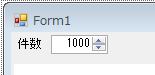
範囲が決まっている数値を入力させたい場合、NumericUpDownコントロールを使用すると、数値チェックや範囲チェックを自動で行ってくれるので便利です。


NumericUpDownに入力された結果はValueプロパティで取得できるのですが、Valueプロパティはデータ型がintではなくDecimalになっています。

結果をintで受け取りたい場合は、以下のコードで型変換が可能です。

int intVal = Decimal.ToInt32( numericUpDown1.Value );


1だけなのですが、よく忘れてしまうので備忘録用のメモ。

iOS SafariのUserAgentメモ

iOS5 Safari
Mozilla/5.0 (iPhone; CPU iPhone OS 5_0 like Mac OS X) AppleWebKit/534.46 (KHTML, like Gecko) Version/5.1 Mobile/9A334 Safari/7534.48.3

iOS6 Safari
Mozilla/5.0 (iPhone; CPU iPhone OS 6_0 like Mac OS X) AppleWebKit/536.26 (KHTML, like Gecko) Version/6.0 Mobile/10A5376e Safari/8536.25

iOS7 Safari
Mozilla/5.0 (iPhone; CPU iPhone OS 7_0 like Mac OS X) AppleWebKit/537.51.1 (KHTML, like Gecko) Version/7.0 Mobile/11A465 Safari/9537.53

Greeコミュニティページをスクレイピングする

Greeコミュニティページの解析メモです。
例:アイドルマスター ミリオンライブ!の場合

コミュニティトップ

コミュニティトップのURLは、以下の形式になっている

http://gree.jp/community/4388820


4388820がコミュニティID。
これはアプリIDとは別の値になる(ちなみにアイドルマスターのアプリIDは58737)

コミュニティページは、Greeにログインしないと表示されない
コミュニティページ内には複数のトピック(スレッド)が存在している
トピックは最新書き込み順でソートされている

トピック一覧ページ


コミュニティトップ:もっと見る(トピック一覧)のURL

http://gree.jp/?mode=community&act=bbs_list&community_id=4388820


コミュニティトップ:もっと見る の2,3ページ目のURL

http://gree.jp/?mode=community&act=bbs_list&community_id=4388820&offset=20&limit=20
http://gree.jp/?mode=community&act=bbs_list&community_id=4388820&offset=40&limit=20


offsetでページ数を制御している。
limitは20から19や21に変更してもページあたりの件数が変わらないので、利用されていない模様
ページング処理は常に1ページ当たり20件となる。

なので、1ページづつ順に見て行きたい場合はoffsetを20づつ加算していけばよい。

最終ページか否かは、div.paging_exタグがあるか否かで判定できる。
具体的には、以下の様な感じになり、最後まで入ってしまうとdiv.topic_listタグの中身が空になる

最終ページで無い場合

<div class="content topic_list">
    <div class="paging_ex">
    ..
    </div>
</div>


最終ページの場合

<div class="content topic_list"></div>


コミュニティ内の各トピック


トピックページのURL

http://gree.jp/?mode=community&act=bbs_view&thread_id=59763335


コミュニティ内の各トピックは一意のidが振られている
トピック内の書き込みは最大1000件までとなっている


2ページ目のURL

http://gree.jp/?mode=community&act=bbs_view&thread_id=59763335&offset=20&limit=20#comment-list


2ページ目以降はコミュニティトップと同様、offset,limitで場所管理されている。
ただ、こちらはトップと異なりlimitの値が有効なので、limitを1000にすれば全書き込みが一度に取得できる。


トピック内の書き込み


各スレッド内の書き込みはfeedと呼ばれており、1件のfeedは下記の構造になっている

<li class="feed clearfix" id="#feed_id#">
    <div class="portrait-48">
        <a href="#gree_user_home#" class="portrait-25">
            <img src="#gree_avator_image_url#" alt="#gree_user_id#">
        </a>
    </div>
    <div class="item">
        <strong><a href="#gree_user_home#">#gree_user_id#</a></strong>
        <div class="shoulder">
            &nbsp;
            <span class="timestamp">#feed_insert_time#</span>
        </div>
        #feed_message#
 
    </div>
</li>


上記タグのうち、下記の箇所が可変部となっている

#feed_id#
#gree_user_home#
#gree_avator_image_url#
#gree_user_id#
#feed_insert_time#
#feed_message#

Nexus7のUSBコネクタが壊れたのでDock用のコネクタから強制充電させる

B00A0CY4QE
Nexus7のUSBコネクタ壊れてしまったらしく、充電が出来なくなってしまいました。
普段充電に使用しているPCのUSBポートでは500mAしか流せないのでそれが原因かと思い、本体に付いて来た純正のACアダプタを使用しても上手くいかない…
他にもモバイルバッテリーなども試してみたのですが、どう頑張ってもダメです。


Nexus7には、USB以外にもDock用の端子が付いているのでこちらから充電させることも可能です。
純正品だと、下記の商品になります。
B009UQZPA0
Nexus 7専用ドッキングステーション 90-XB3XOKDS00020

純正のDockを買っても良いのですが、ちょっと高いので手元のパーツを組み合わせて充電させてみます。


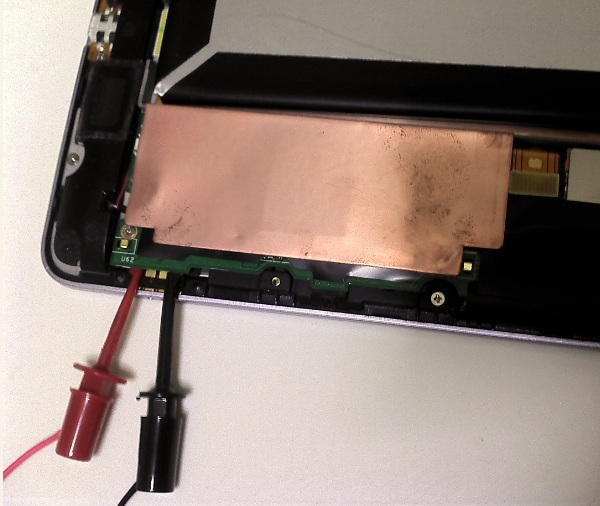
まずは、本体の裏側の黒いプラスチックカバーを外します。このカバーは引っかけてあるだけなので、工具を使わなくても爪を立てて隙間に差し込むだけで分解できます。

次に、どこのご家庭にも1つはあるICクリップアダプタを使用して、Dock用の端子に引っ掛けます。
端子は4つ有りますが、一番下側(端に近いほう)が+5V(赤色)、一番上がGNDです。


このピンに+5Vを入力してあげると、無事充電が開始されました。


暫くほうっておいたら、満充電までしてくれました。


2016/02追記:
最近amazonを見ていたら、Nexus7のコネクタ部分だけ販売していました。
純正品でないため自己責任になりますが、300円ぐらいで購入できるので、分解できる人は試してみるのも良いかもしれません。

第1世代 Nexus7 充電 micro USB 端子 基板 修理 パーツ Asus Google

[C#]文字列をMD5ハッシュ化し,文字列として返すメソッド

C#では、MD5ハッシュ値を、System.Security.Cryptography.MD5クラスを使って計算できます。

実際の計算処理もComputeHashメソッドをコールするだけです。

public byte[] ComputeHash(
	byte[] buffer
)
 
public byte[] ComputeHash(
	Stream inputStream
)
 
public byte[] ComputeHash(
	byte[] buffer,
	int offset,
	int count
)


ですがこのメソッドは、引数・戻り値がbyte配列やStreamになっており、
いまいち使い勝手がよくない場合も有ります。


という訳で、引数戻り値がstringとなる、ラッパーのメソッドを作成しました。

//--------------------------------------------------------------------
/// <summary>  指定された文字列をMD5でハッシュ化し、文字列として返す
/// </summary>
/// <param name="srcStr">入力文字列</param>
/// <returns>入力文字列のMD5ハッシュ値</returns>
//--------------------------------------------------------------------
private string calcMd5( string srcStr ) {
 
	System.Security.Cryptography.MD5 md5 = System.Security.Cryptography.MD5.Create();
 
	// md5ハッシュ値を求める
	byte[] srcBytes = System.Text.Encoding.UTF8.GetBytes(srcStr);
	byte[] destBytes = md5.ComputeHash(srcBytes);
 
	// 求めたmd5値を文字列に変換する
	System.Text.StringBuilder destStrBuilder;
	destStrBuilder = new System.Text.StringBuilder();
	foreach (byte curByte in destBytes) {
		destStrBuilder.Append(curByte.ToString("x2"));
	}
 
	// 変換後の文字列を返す
	return destStrBuilder.ToString();
}


上記のメソッドは、入力文字列をUTF8と見なしてハッシュ値計算します。

入力文字列の文字コードまで指定したい場合は、下記のメソッドを使用します。

//--------------------------------------------------------------------
/// <summary>  指定された文字列をMD5でハッシュ化し、文字列として返す
/// </summary>
/// <param name="srcStr">入力文字列</param>
/// <param name="enc">入力エンコーディング</param>
/// <returns>入力文字列のMD5ハッシュ値</returns>
//--------------------------------------------------------------------
private string calcMd5( string srcStr, System.Text.Encoding enc ) {
	System.Security.Cryptography.MD5 md5 = System.Security.Cryptography.MD5.Create();
 
	// md5ハッシュ値を求める
	byte[] srcBytes = enc.GetBytes(srcStr);
	byte[] destBytes = md5.ComputeHash(srcBytes);
 
	// 求めたmd5値を文字列に変換する
	System.Text.StringBuilder destStrBuilder;
	destStrBuilder = new System.Text.StringBuilder();
	foreach (byte curByte in destBytes) {
		destStrBuilder.Append(curByte.ToString("x2"));
	}
 
	// 変換後の文字列を返す
	return destStrBuilder.ToString();
}


世界でもっとも強力な9のアルゴリズム

mysqldumpのオプション一覧

mysqldump –helpの結果です
xamppに入っていたMySQL5.5環境で実行しています。

mysqldump  Ver 10.13 Distrib 5.5.27, for Win32 (x86)
Copyright (c) 2000, 2011, Oracle and/or its affiliates. All rights reserved.
 
Oracle is a registered trademark of Oracle Corporation and/or its
affiliates. Other names may be trademarks of their respective
owners.
 
Dumping structure and contents of MySQL databases and tables.
Usage: mysqldump [OPTIONS] database [tables]
OR     mysqldump [OPTIONS] --databases [OPTIONS] DB1 [DB2 DB3...]
OR     mysqldump [OPTIONS] --all-databases [OPTIONS]
 
Default options are read from the following files in the given order:
C:\Windows\my.ini C:\Windows\my.cnf C:\my.ini C:\my.cnf C:\xampp\mysql\my.ini 
C:\xampp\mysql\my.cnf C:\xampp\mysql\bin\my.ini C:\xampp\mysql\bin\my.cnf 
 
The following groups are read: mysqldump client
The following options may be given as the first argument:
--print-defaults        Print the program argument list and exit.
--no-defaults           Don't read default options from any option file.
--defaults-file=#       Only read default options from the given file #.
--defaults-extra-file=# Read this file after the global files are read.
  -A, --all-databases Dump all the databases. This will be same as --databases
                      with all databases selected.
  -Y, --all-tablespaces 
                      Dump all the tablespaces.
  -y, --no-tablespaces 
                      Do not dump any tablespace information.
  --add-drop-database Add a DROP DATABASE before each create.
  --add-drop-table    Add a DROP TABLE before each create.
                      (Defaults to on; use --skip-add-drop-table to disable.)
  --add-locks         Add locks around INSERT statements.
                      (Defaults to on; use --skip-add-locks to disable.)
  --allow-keywords    Allow creation of column names that are keywords.
  --apply-slave-statements 
                      Adds 'STOP SLAVE' prior to 'CHANGE MASTER' and 'START
                      SLAVE' to bottom of dump.
  --character-sets-dir=name 
                      Directory for character set files.
  -i, --comments      Write additional information.
                      (Defaults to on; use --skip-comments to disable.)
  --compatible=name   Change the dump to be compatible with a given mode. By
                      default tables are dumped in a format optimized for
                      MySQL. Legal modes are: ansi, mysql323, mysql40,
                      postgresql, oracle, mssql, db2, maxdb, no_key_options,
                      no_table_options, no_field_options. One can use several
                      modes separated by commas. Note: Requires MySQL server
                      version 4.1.0 or higher. This option is ignored with
                      earlier server versions.
  --compact           Give less verbose output (useful for debugging). Disables
                      structure comments and header/footer constructs.  Enables
                      options --skip-add-drop-table --skip-add-locks
                      --skip-comments --skip-disable-keys --skip-set-charset.
  -c, --complete-insert 
                      Use complete insert statements.
  -C, --compress      Use compression in server/client protocol.
  -a, --create-options 
                      Include all MySQL specific create options.
                      (Defaults to on; use --skip-create-options to disable.)
  -B, --databases     Dump several databases. Note the difference in usage; in
                      this case no tables are given. All name arguments are
                      regarded as database names. 'USE db_name;' will be
                      included in the output.
  -#, --debug[=#]     This is a non-debug version. Catch this and exit.
  --debug-check       Check memory and open file usage at exit.
  --debug-info        Print some debug info at exit.
  --default-character-set=name 
                      Set the default character set.
  --delayed-insert    Insert rows with INSERT DELAYED.
  --delete-master-logs 
                      Delete logs on master after backup. This automatically
                      enables --master-data.
  -K, --disable-keys  '/*!40000 ALTER TABLE tb_name DISABLE KEYS */; and
                      '/*!40000 ALTER TABLE tb_name ENABLE KEYS */; will be put
                      in the output.
                      (Defaults to on; use --skip-disable-keys to disable.)
  --dump-slave[=#]    This causes the binary log position and filename of the
                      master to be appended to the dumped data output. Setting
                      the value to 1, will printit as a CHANGE MASTER command
                      in the dumped data output; if equal to 2, that command
                      will be prefixed with a comment symbol. This option will
                      turn --lock-all-tables on, unless --single-transaction is
                      specified too (in which case a global read lock is only
                      taken a short time at the beginning of the dump - don't
                      forget to read about --single-transaction below). In all
                      cases any action on logs will happen at the exact moment
                      of the dump.Option automatically turns --lock-tables off.
  -E, --events        Dump events.
  -e, --extended-insert 
                      Use multiple-row INSERT syntax that include several
                      VALUES lists.
                      (Defaults to on; use --skip-extended-insert to disable.)
  --fields-terminated-by=name 
                      Fields in the output file are terminated by the given
                      string.
  --fields-enclosed-by=name 
                      Fields in the output file are enclosed by the given
                      character.
  --fields-optionally-enclosed-by=name 
                      Fields in the output file are optionally enclosed by the
                      given character.
  --fields-escaped-by=name 
                      Fields in the output file are escaped by the given
                      character.
  -F, --flush-logs    Flush logs file in server before starting dump. Note that
                      if you dump many databases at once (using the option
                      --databases= or --all-databases), the logs will be
                      flushed for each database dumped. The exception is when
                      using --lock-all-tables or --master-data: in this case
                      the logs will be flushed only once, corresponding to the
                      moment all tables are locked. So if you want your dump
                      and the log flush to happen at the same exact moment you
                      should use --lock-all-tables or --master-data with
                      --flush-logs.
  --flush-privileges  Emit a FLUSH PRIVILEGES statement after dumping the mysql
                      database.  This option should be used any time the dump
                      contains the mysql database and any other database that
                      depends on the data in the mysql database for proper
                      restore. 
  -f, --force         Continue even if we get an SQL error.
  -?, --help          Display this help message and exit.
  --hex-blob          Dump binary strings (BINARY, VARBINARY, BLOB) in
                      hexadecimal format.
  -h, --host=name     Connect to host.
  --ignore-table=name Do not dump the specified table. To specify more than one
                      table to ignore, use the directive multiple times, once
                      for each table.  Each table must be specified with both
                      database and table names, e.g.,
                      --ignore-table=database.table.
  --include-master-host-port 
                      Adds 'MASTER_HOST=<host>, MASTER_PORT=<port>' to 'CHANGE
                      MASTER TO..' in dump produced with --dump-slave.
  --insert-ignore     Insert rows with INSERT IGNORE.
  --lines-terminated-by=name 
                      Lines in the output file are terminated by the given
                      string.
  -x, --lock-all-tables 
                      Locks all tables across all databases. This is achieved
                      by taking a global read lock for the duration of the
                      whole dump. Automatically turns --single-transaction and
                      --lock-tables off.
  -l, --lock-tables   Lock all tables for read.
                      (Defaults to on; use --skip-lock-tables to disable.)
  --log-error=name    Append warnings and errors to given file.
  --master-data[=#]   This causes the binary log position and filename to be
                      appended to the output. If equal to 1, will print it as a
                      CHANGE MASTER command; if equal to 2, that command will
                      be prefixed with a comment symbol. This option will turn
                      --lock-all-tables on, unless --single-transaction is
                      specified too (in which case a global read lock is only
                      taken a short time at the beginning of the dump; don't
                      forget to read about --single-transaction below). In all
                      cases, any action on logs will happen at the exact moment
                      of the dump. Option automatically turns --lock-tables
                      off.
  --max-allowed-packet=# 
                      The maximum packet length to send to or receive from
                      server.
  --net-buffer-length=# 
                      The buffer size for TCP/IP and socket communication.
  --no-autocommit     Wrap tables with autocommit/commit statements.
  -n, --no-create-db  Suppress the CREATE DATABASE ... IF EXISTS statement that
                      normally is output for each dumped database if
                      --all-databases or --databases is given.
  -t, --no-create-info 
                      Don't write table creation info.
  -d, --no-data       No row information.
  -N, --no-set-names  Same as --skip-set-charset.
  --opt               Same as --add-drop-table, --add-locks, --create-options,
                      --quick, --extended-insert, --lock-tables, --set-charset,
                      and --disable-keys. Enabled by default, disable with
                      --skip-opt.
  --order-by-primary  Sorts each table's rows by primary key, or first unique
                      key, if such a key exists.  Useful when dumping a MyISAM
                      table to be loaded into an InnoDB table, but will make
                      the dump itself take considerably longer.
  -p, --password[=name] 
                      Password to use when connecting to server. If password is
                      not given it's solicited on the tty.
  -W, --pipe          Use named pipes to connect to server.
  -P, --port=#        Port number to use for connection.
  --protocol=name     The protocol to use for connection (tcp, socket, pipe,
                      memory).
  -q, --quick         Don't buffer query, dump directly to stdout.
                      (Defaults to on; use --skip-quick to disable.)
  -Q, --quote-names   Quote table and column names with backticks (`).
                      (Defaults to on; use --skip-quote-names to disable.)
  --replace           Use REPLACE INTO instead of INSERT INTO.
  -r, --result-file=name 
                      Direct output to a given file. This option should be used
                      in systems (e.g., DOS, Windows) that use carriage-return
                      linefeed pairs (\r\n) to separate text lines. This option
                      ensures that only a single newline is used.
  -R, --routines      Dump stored routines (functions and procedures).
  --set-charset       Add 'SET NAMES default_character_set' to the output.
                      (Defaults to on; use --skip-set-charset to disable.)
  --shared-memory-base-name=name 
                      Base name of shared memory.
  --single-transaction 
                      Creates a consistent snapshot by dumping all tables in a
                      single transaction. Works ONLY for tables stored in
                      storage engines which support multiversioning (currently
                      only InnoDB does); the dump is NOT guaranteed to be
                      consistent for other storage engines. While a
                      --single-transaction dump is in process, to ensure a
                      valid dump file (correct table contents and binary log
                      position), no other connection should use the following
                      statements: ALTER TABLE, DROP TABLE, RENAME TABLE,
                      TRUNCATE TABLE, as consistent snapshot is not isolated
                      from them. Option automatically turns off --lock-tables.
  --dump-date         Put a dump date to the end of the output.
                      (Defaults to on; use --skip-dump-date to disable.)
  --skip-opt          Disable --opt. Disables --add-drop-table, --add-locks,
                      --create-options, --quick, --extended-insert,
                      --lock-tables, --set-charset, and --disable-keys.
  -S, --socket=name   The socket file to use for connection.
  --ssl               Enable SSL for connection (automatically enabled with
                      other flags).
  --ssl-ca=name       CA file in PEM format (check OpenSSL docs, implies
                      --ssl).
  --ssl-capath=name   CA directory (check OpenSSL docs, implies --ssl).
  --ssl-cert=name     X509 cert in PEM format (implies --ssl).
  --ssl-cipher=name   SSL cipher to use (implies --ssl).
  --ssl-key=name      X509 key in PEM format (implies --ssl).
  --ssl-verify-server-cert 
                      Verify server's "Common Name" in its cert against
                      hostname used when connecting. This option is disabled by
                      default.
  -T, --tab=name      Create tab-separated textfile for each table to given
                      path. (Create .sql and .txt files.) NOTE: This only works
                      if mysqldump is run on the same machine as the mysqld
                      server.
  --tables            Overrides option --databases (-B).
  --triggers          Dump triggers for each dumped table.
                      (Defaults to on; use --skip-triggers to disable.)
  --tz-utc            SET TIME_ZONE='+00:00' at top of dump to allow dumping of
                      TIMESTAMP data when a server has data in different time
                      zones or data is being moved between servers with
                      different time zones.
                      (Defaults to on; use --skip-tz-utc to disable.)
  -u, --user=name     User for login if not current user.
  -v, --verbose       Print info about the various stages.
  -V, --version       Output version information and exit.
  -w, --where=name    Dump only selected records. Quotes are mandatory.
  -X, --xml           Dump a database as well formed XML.
  --plugin-dir=name   Directory for client-side plugins.
  --default-auth=name Default authentication client-side plugin to use.


[C#]Escキーを押したらフォームをクローズさせる方法

C#(.NetFramework)で、Escキーを押したらフォームをクローズさせる方法です。


FormのKeyPreviewをtrueに下上で、KeyPressのイベントハンドラに以下のコードを書きます。

private void Form1_KeyPress( object sender, KeyPressEventArgs e ) {
    if ( e.KeyChar == (char)Keys.Escape ) {
        this.Close();
    }
}


これで、Escで画面が閉じてくれます。

他に、画面に閉じるボタンがある場合は、FormのCancelButtonプロパティに閉じるボタンを指定する方法も有ります。こちらは、Escキーを押した時点でCancelButtonで指定したボタンがクリックされたと見なされます。

lolipopのサーバに,TeraTermを使用してSSHで自動ログインする


lolipopではsshによるリモートログインが可能なのですが、セキュリティ対策のため、ユーザがパスワードを指定する事が出来ずランダム文字列になっています。
しかもこの文字列、30文字以上あるので管理が面倒です。

そこで、今回はTeraTeramを使用して、lolipopのサーバにログインできるよう、マクロを組んでみます。
また、パスワードは一度入力したら、暗号化した形で保存しておき、毎回入力しないで済むようにします。
SSHで安全なリモートアクセスを構築する

まず、下記のファイルをlolipop.ttlというファイルで保存します。

; パスワード保存ファイル(暗号化して保存)
PASSFILE = 'C:\\TeraTermPw.txt'
 
; 接続先サーバ,ユーザ名
HOSTADDR = 'sshXXX.lolipop.jp'                     ; 接続先サーバを指定
USERNAME = 'XXXXXX'                                ; 接続ユーザ名を指定
 
; パスワードが保存されていなければダイアログを表示
getpassword PASSFILE HOSTADDR PASSWORD
 
 
; sshの接続コマンドを組み立てる(lolipop ssh port=2222)
strconcat COMMAND ':2222 /ssh /2 /auth=password /user='
strconcat COMMAND USERNAME
strconcat COMMAND ' /passwd='
strconcat COMMAND PASSWORD
 
; サーバに接続する
connect COMMAND
 
; 接続エラーの場合は終了
if result<>2 then
	messagebox ‘サーバに接続できませんでした.’ ‘error’
	end
endif


ファイル中のHOSTADDR、USERNAME には実際に管理しているサーバ、ユーザ名を入力して下さい。

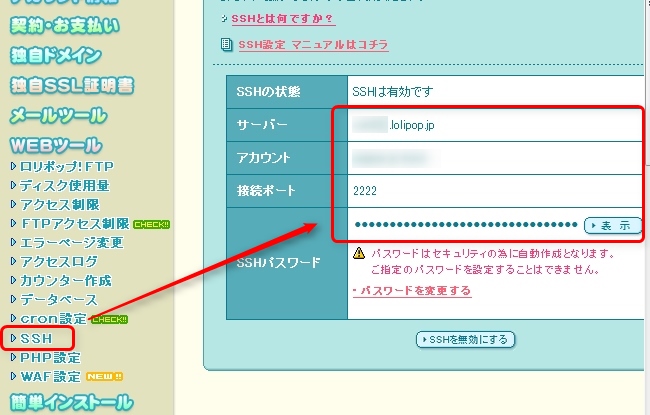
これらの値lolipopの管理画面から確認できます。
Webツール→SSHを選択すると表示されます。


次に、このファイルをパラメータに、TeraTermを自動起動するバッチを書きます。
login.bat

C:\xxx\TeraTerm\ttermpro.exe /M=C:\lolipop.ttl


これで、バッチを実行するだけで、lolipopのサーバにログインする事ができます。
(初回だけパスワードを聞かれます)


さらに、ttlファイルの”connect COMMAND”の前に、以下の記述を追加すると、実行したコマンドをログファイルに落とす事も可能です。

; ログファイルを指定する(フォルダは事前に作成する必要あり)
getdate datestr
gettime timestr
strcopy timestr 1 2 hourstr
strcopy timestr 4 2 minutestr
strcopy timestr 7 2 secondstr
 
filename = 'c:\\log_teraterm_'
strconcat filename datestr
strconcat filename '_'
strconcat filename hourstr
strconcat filename minutestr
strconcat filename secondstr
strconcat filename '.log'
;messagebox filename "ログファイル名"
logopen filename 0 0


また、ttlファイルの最後に以下のように書くと,ログインした直後にコマンドを実行することが出来ます。

; コマンドを実行
wait '$'
sendln 'date'


例ではdateコマンドを実行していますが、ワンクリックで簡単にログを見たいときなどは、sendlin ’tail -f logtile.txt’などと書いておくと、手間が省けて便利です。
Linuxセキュリティ入門

[CentOS]SELinuxを無効にする

まず、一般ユーザに対してsudoを有効化しておく
設定ファイルは/etc/sudoersだが、viではなく専用のコマンドで編集する

[user1@cent ~]$ sudo - root
[root1@cent ~]# visudo


ファイル内に”root ALL=(ALL) ALL”という定義がある。
この下に、普段使用している一般ユーザの定義を追加(例ではユーザ名を”user1″としています)

root    ALL=(ALL)   ALL
user1   ALL=(ALL)   ALL


SELinuxが有効になっていることを確認

[user1@cent ~]$ sudo getenforce
Enforcing


SELinuxが無効化し、設定が変わっていることを確認

[user1@cent ~]$ sudo setenforce 0
[user1@cent ~]$ sudo getenforce
Permissive


再起動時も無効になるように、設定ファイルを書き換える

vi /etc/sysconfig/selinux


SELINUX=enforcing を、SELINUX=disabledに変更

再起動してgetenforceし、Permissiveとなっていることを確認する

CentOS6.3にApacheをインストールする


yumでインストール

[root@cent ~]# yum install httpd
 
Loaded plugins: fastestmirror, refresh-packagekit, security
Loading mirror speeds from cached hostfile
 * base: www.ftp.ne.jp
 * extras: www.ftp.ne.jp
 * updates: www.ftp.ne.jp
Setting up Install Process
Resolving Dependencies
--> Running transaction check
---> Package httpd.x86_64 0:2.2.15-15.el6.centos.1 will be installed
--> Processing Dependency: httpd-tools = 2.2.15-15.el6.centos.1 for package: httpd-2.2.15-15.el6.centos.1.x86_64
--> Processing Dependency: apr-util-ldap for package: httpd-2.2.15-15.el6.centos.1.x86_64
--> Processing Dependency: /etc/mime.types for package: httpd-2.2.15-15.el6.centos.1.x86_64
--> Processing Dependency: libaprutil-1.so.0()(64bit) for package: httpd-2.2.15-15.el6.centos.1.x86_64
--> Processing Dependency: libapr-1.so.0()(64bit) for package: httpd-2.2.15-15.el6.centos.1.x86_64
--> Running transaction check
---> Package apr.x86_64 0:1.3.9-5.el6_2 will be installed
---> Package apr-util.x86_64 0:1.3.9-3.el6_0.1 will be installed
---> Package apr-util-ldap.x86_64 0:1.3.9-3.el6_0.1 will be installed
---> Package httpd-tools.x86_64 0:2.2.15-15.el6.centos.1 will be installed
---> Package mailcap.noarch 0:2.1.31-2.el6 will be installed
--> Finished Dependency Resolution
 
Dependencies Resolved
 
================================================================================
 Package            Arch        Version                      Repository    Size
================================================================================
Installing:
 httpd              x86_64      2.2.15-15.el6.centos.1       base         813 k
Installing for dependencies:
 apr                x86_64      1.3.9-5.el6_2                updates      123 k
 apr-util           x86_64      1.3.9-3.el6_0.1              base          87 k
 apr-util-ldap      x86_64      1.3.9-3.el6_0.1              base          15 k
 httpd-tools        x86_64      2.2.15-15.el6.centos.1       base          70 k
 mailcap            noarch      2.1.31-2.el6                 base          27 k
 
Transaction Summary
================================================================================
Install       6 Package(s)
 
Total download size: 1.1 M
Installed size: 3.6 M
Is this ok [y/N]: y
Downloading Packages:
(1/6): apr-1.3.9-5.el6_2.x86_64.rpm                      | 123 kB     00:00     
(2/6): apr-util-1.3.9-3.el6_0.1.x86_64.rpm               |  87 kB     00:00     
(3/6): apr-util-ldap-1.3.9-3.el6_0.1.x86_64.rpm          |  15 kB     00:00     
(4/6): httpd-2.2.15-15.el6.centos.1.x86_64.rpm           | 813 kB     00:04     
(5/6): httpd-tools-2.2.15-15.el6.centos.1.x86_64.rpm     |  70 kB     00:00     
(6/6): mailcap-2.1.31-2.el6.noarch.rpm                   |  27 kB     00:00     
--------------------------------------------------------------------------------
Total                                           133 kB/s | 1.1 MB     00:08     
Running rpm_check_debug
Running Transaction Test
Transaction Test Succeeded
Running Transaction
  Installing : apr-1.3.9-5.el6_2.x86_64                                     1/6 
  Installing : apr-util-1.3.9-3.el6_0.1.x86_64                              2/6 
  Installing : apr-util-ldap-1.3.9-3.el6_0.1.x86_64                         3/6 
  Installing : httpd-tools-2.2.15-15.el6.centos.1.x86_64                    4/6 
  Installing : mailcap-2.1.31-2.el6.noarch                                  5/6 
  Installing : httpd-2.2.15-15.el6.centos.1.x86_64                          6/6 
  Verifying  : httpd-2.2.15-15.el6.centos.1.x86_64                          1/6 
  Verifying  : apr-util-ldap-1.3.9-3.el6_0.1.x86_64                         2/6 
  Verifying  : apr-1.3.9-5.el6_2.x86_64                                     3/6 
  Verifying  : httpd-tools-2.2.15-15.el6.centos.1.x86_64                    4/6 
  Verifying  : mailcap-2.1.31-2.el6.noarch                                  5/6 
  Verifying  : apr-util-1.3.9-3.el6_0.1.x86_64                              6/6 
 
Installed:
  httpd.x86_64 0:2.2.15-15.el6.centos.1                                                                                               
 
Dependency Installed:
  apr.x86_64 0:1.3.9-5.el6_2                       apr-util.x86_64 0:1.3.9-3.el6_0.1      apr-util-ldap.x86_64 0:1.3.9-3.el6_0.1     
  httpd-tools.x86_64 0:2.2.15-15.el6.centos.1      mailcap.noarch 0:2.1.31-2.el6         
 
Complete!


apacheのサービスを起動

[root@cent ~]# /etc/init.d/httpd start
httpd を起動中: httpd: apr_sockaddr_info_get() failed for cent
httpd: Could not reliably determine the server's fully qualified domain name, 
using 127.0.0.1 for ServerName
                                                           [  OK  ]


起動しているか確認する。

[root@cent ~]# /etc/init.d/httpd status
httpd (pid  35166) を実行中...


これでブラウザからhttp://localhost/にアクセスすると、トップページが表示される

[Smarty]”Call of unknown method ‘assign_by_ref”エラーが出る理由

PHPで、Smartyを使ったフレームワークを使用していると、以下のエラーが出る場合が有ります。


(!) Fatal error: Uncaught exception 'SmartyException' with message 
'Call of unknown method 'assign_by_ref'.' 
 
in ...\php\pear\Smarty\sysplugins\smarty_internal_templatebase.php on line 806


これは、Smartyを使用しているクライアント側のコードがassign_by_ref()をコールしているが、そのメソッドをSmartyが用意していないというエラーです。SmartではVer2以前では、assign_by_ref()メソッドが有りましたが、ver3からはassignByRef()に名前が変わったのが理由です。

対処するにはクライアント側のコードを変更するか、使用するSmartyのバージョンを2.xに戻します。


Smarty3のメソッド名命名規則の変更

Smartyはバージョン3で関数の命名規則が、アンダーバーでつなぐ形式からキャメルケースに変更されたようです。この辺の詳しい話はREADMEに載ってるので、引用しておきます。

The Smarty 3 API has been refactored to a syntax geared
for consistency and modularity. The Smarty 2 API syntax is still supported, but
will throw a deprecation notice. You can disable the notices, but it is highly
recommended to adjust your syntax to Smarty 3, as the Smarty 2 syntax must run
through an extra rerouting wrapper.
 
Basically, all Smarty methods now follow the "fooBarBaz" camel case syntax. Also,
all Smarty properties now have getters and setters. So for example, the property
$smarty->cache_dir can be set with $smarty->setCacheDir('foo/') and can be
retrieved with $smarty->getCacheDir().
 
Some of the Smarty 3 APIs have been revoked such as the "is*" methods that were
just duplicate functions of the now available "get*" methods.


ざっくり日本語に訳すと以下の様な感じです。

一貫性とモジュール化の観点から、Smarty3 APIのリファクタリングをしました
Smarty2のAPI関数はサポートされていますが、非推奨のNoticeが出ます。
Noticeを無効にすることもできますが、Smarty3への変更を行っておく事を強く推奨します。
 
基本的に、Smarty3のメソッドはfooBarBaz()みたいな感じで、キャメルケースになっています。
あと、プロパティはgetter/setterが用意されています。
例えば、プロパティ"$smarty->cache_dir"は、以下のメソッドでset/getできます。
   $smarty->setCacheDir('foo/')
   $smarty->getCacheDir()
 
また、Smarty2まで存在していたisXxxx()的なメソッドは、一部getXxxx()的な感じに変わってたりもします。


具体的には、以下のメソッド名になります。

Here is a rundown of the Smarty 3 API:
 
$smarty->fetch($template, $cache_id = null, $compile_id = null, $parent = null)
$smarty->display($template, $cache_id = null, $compile_id = null, $parent = null)
$smarty->isCached($template, $cache_id = null, $compile_id = null)
$smarty->createData($parent = null)
$smarty->createTemplate($template, $cache_id = null, $compile_id = null, $parent = null)
$smarty->enableSecurity()
$smarty->disableSecurity()
$smarty->setTemplateDir($template_dir)
$smarty->addTemplateDir($template_dir)
$smarty->templateExists($resource_name)
$smarty->loadPlugin($plugin_name, $check = true)
$smarty->loadFilter($type, $name)
$smarty->setExceptionHandler($handler)
$smarty->addPluginsDir($plugins_dir)
$smarty->getGlobal($varname = null)
$smarty->getRegisteredObject($name)
$smarty->getDebugTemplate()
$smarty->setDebugTemplate($tpl_name)
$smarty->assign($tpl_var, $value = null, $nocache = false)
$smarty->assignGlobal($varname, $value = null, $nocache = false)
$smarty->assignByRef($tpl_var, &$value, $nocache = false)
$smarty->append($tpl_var, $value = null, $merge = false, $nocache = false)
$smarty->appendByRef($tpl_var, &$value, $merge = false)
$smarty->clearAssign($tpl_var)
$smarty->clearAllAssign()
$smarty->configLoad($config_file, $sections = null)
$smarty->getVariable($variable, $_ptr = null, $search_parents = true, $error_enable = true)
$smarty->getConfigVariable($variable)
$smarty->getStreamVariable($variable)
$smarty->getConfigVars($varname = null)
$smarty->clearConfig($varname = null)
$smarty->getTemplateVars($varname = null, $_ptr = null, $search_parents = true)
$smarty->clearAllCache($exp_time = null, $type = null)
$smarty->clearCache($template_name, $cache_id = null, $compile_id = null, $exp_time = null, $type = null)
 
$smarty->registerPlugin($type, $tag, $callback, $cacheable = true, $cache_attr = array())
 
$smarty->registerObject($object_name, $object_impl, $allowed = array(), $smarty_args = true, $block_methods = array())
 
$smarty->registerFilter($type, $function_name)
$smarty->registerResource($resource_type, $function_names)
$smarty->registerDefaultPluginHandler($function_name)
$smarty->registerDefaultTemplateHandler($function_name)
 
$smarty->unregisterPlugin($type, $tag)
$smarty->unregisterObject($object_name)
$smarty->unregisterFilter($type, $function_name)
$smarty->unregisterResource($resource_type)
 
$smarty->compileAllTemplates($extention = '.tpl', $force_compile = false, $time_limit = 0, $max_errors = null)
$smarty->clearCompiledTemplate($resource_name = null, $compile_id = null, $exp_time = null)
$smarty->testInstall()
 
// then all the getters/setters, available for all properties. Here are a few:
 
$caching = $smarty->getCaching();      // get $smarty->caching
$smarty->setCaching(true);             // set $smarty->caching
$smarty->setDeprecationNotices(false); // set $smarty->deprecation_notices
$smarty->setCacheId($id);              // set $smarty->cache_id
$debugging = $smarty->getDebugging();  // get $smarty->debugging

XAMPPのShellにカスタムの環境変数を追加する

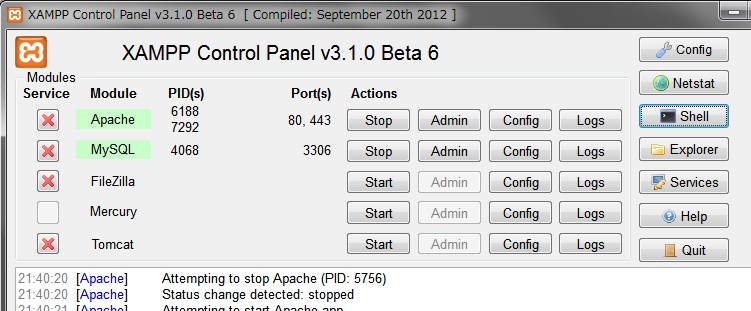
XAMPPでは、簡単に開発を行得るようにする為Shellボタンが用意されています。
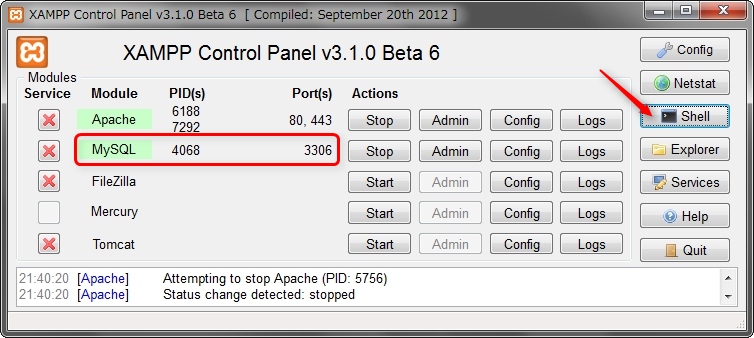
これを使う事で、MYSQLやPHPなどで使用する環境変数が適切に整った状態のコマンドラインを用意する事ができます(Shellボタンは画面右側の上から3つ目に有ります)。


具体的には、特にパスの設定をしなくてもmysqlコマンド一発で即、DBにアクセス可能だったりします。


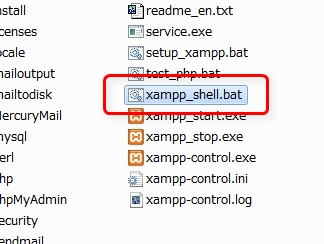
このShellに対して追加で環境変数等を追加したい場合は、xamppインストールディレクトリに有るxampp_shell.batを編集すれば良いです。


このファイルは、デフォルトでは以下の様な感じになってます。

@ECHO OFF
 
GOTO weiter
:setenv
SET "MIBDIRS=%~dp0php\extras\mibs"
SET "MIBDIRS=%MIBDIRS:\=/%"
SET "MYSQL_HOME=%~dp0mysql\bin"
SET "OPENSSL_CONF=%~dp0apache\bin\openssl.cnf"
SET "OPENSSL_CONF=%OPENSSL_CONF:\=/%"
SET "PHP_PEAR_SYSCONF_DIR=%~dp0php"
SET "PHP_PEAR_BIN_DIR=%~dp0php"
...中略
SET "Path=%~dp0;%~dp0php;%~dp0perl\site\bin;%~dp0perl\bin;%~dp0apache\bin;%~dp0mysql\bin;%~dp0FileZillaFTP;%~dp0MercuryMail;%~dp0sendmail;%~dp0webalizer;%~dp0tomcat\bin;%Path%"
GOTO :EOF
:weiter
 
IF "%1" EQU "setenv" (
    ECHO.
    ECHO Setting environment for using XAMPP for Windows.
    CALL :setenv
) ELSE (
    SETLOCAL
    TITLE XAMPP for Windows
    PROMPT %username%@%computername%$S$P$_#$S
    START "" /B %COMSPEC% /K "%~f0" setenv
)


このファイル中の”:setenv”の下にSETコマンドが羅列されてますが、ここで環境変数を追加できます。

@ECHO OFF
 
GOTO weiter
:setenv
SET "MIBDIRS=%~dp0php\extras\mibs"
SET "FOO"=BAR                               <= 追加


また、xamppは任意のフォルダにインストールする事が可能ですが、インストール先パスが必要な場合は~dp0から始まる変数たちを使うと便利です。

例えばxamppを”C:\home\xampp\”にインストールした場合の値は…

変数                値
------------------  -----------------------------
%~dp0               C:\home\xampp\
%~dp0php            C:\home\xampp\php
%~dp0perl           C:\home\xampp\perl
%~dp0apache         C:\home\xampp\apache
%~dp0mysql          C:\home\xampp\mysql
%~dp0FileZillaFTP   C:\home\xampp\FileZillaFTP
%~dp0MercuryMail    C:\home\xampp\MercuryMail
%~dp0sendmail       C:\home\xampp\sendmail
%~dp0webalizer      C:\home\xampp\webalizer
%~dp0tomcat         C:\home\xampp\tomcat


となります。

ですので、例えばSET AA=%~dp0と記述しておくと環境変数AAにC:\home\xampp\がセットされます。


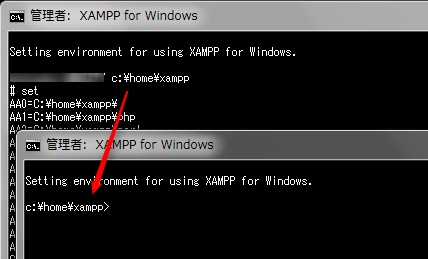
あと、このshellはデフォルトだと、プロンプトにユーザ名とコンピュータ名が表示されます。
これが嫌な場合は、elseの中にある”PROMPT”の命令をコメントアウトしておくと、Windows標準のコマンドプロンプトと同じ表示になります。


PHPStormからMySQLに接続する

PHPStormはPHPのIDE環境ですが、IDEとしてJDBC経由でのDB接続機能を持っているため、DBを使ったシステムの開発を行う時に便利です。
今回はMySQLに接続してみます。


確認に使った環境は以下の通りです

OS
    Windows7
 
IDE
    PHPStorm 5.0.4
 
DB
    MySQL    5.5.27 Community Server (XAMPP 3.1.0に同梱版)


MySQLへ接続できる事を確認しておく


まずは、PHPStormを使わずにMySQLへ接続できる事を確認しておきます。
今回はXAMPPを使っているので、MySQLが起動していることを確認し、Shellボタンをクリックします。


シェルでmysqlコマンドを実行してDBに接続し、適当なSQLを実行してDBにアクセスできる事を確認します。今回は以下のSQLで確認しました。

SELECT	COUNT(*)
FROM	INFORMATIN_SCHEMA.tables;


PHPStormでMySQLへのデータソースを作成する


次にPHPStormでMySQLへアクセスを行います。
DBアクセスを行うためには事前に接続設定(データソース)の定義が必要なので、まずデータソースを作ります。

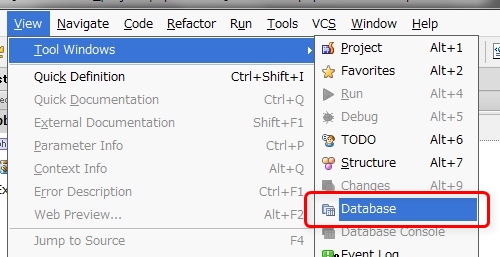
メニューのView -> Tool Windows -> Databaseを選択します。


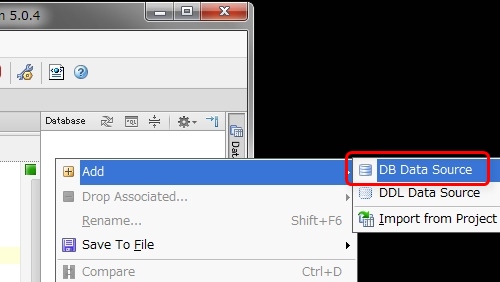
画面の左側にDatabaseのペインが表示されるので、適当なところを右クリックしてAdd->DB Data Sourceを選択します。


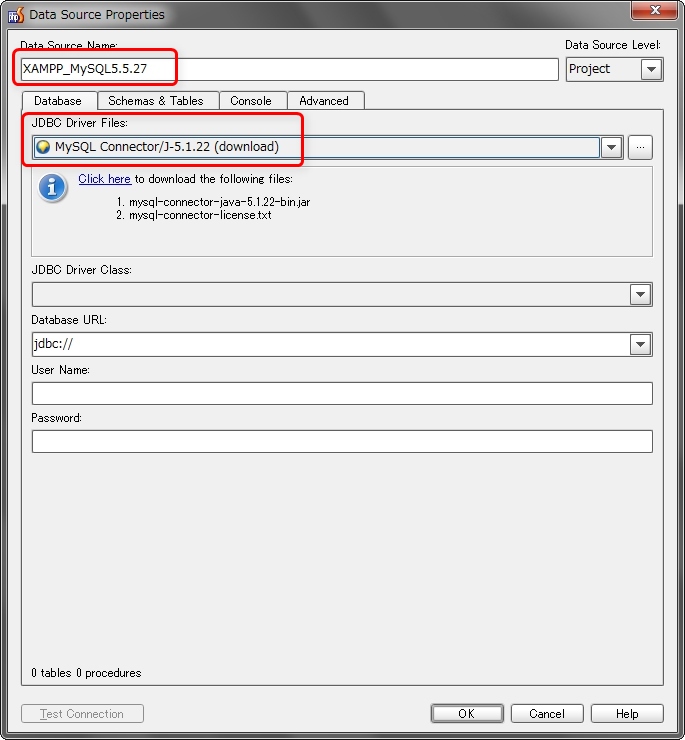
Data Source Nameに適当な名前を入力します。
次にJDBCドライバを選択します。今回はMySQLなので、”MySQL Connector/J-5.1.22″を選択します。


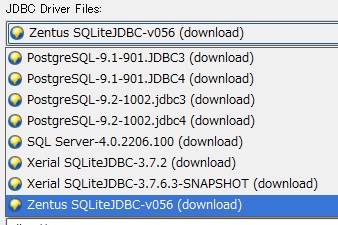
ちなみに余談ですが、JDBCの選択肢自体は、以下のように沢山用意されています。
DB2,Oracle,PostgreSQL,SQL Server等、メジャーどころは一通りカバーされているようです。


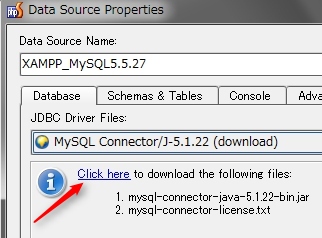
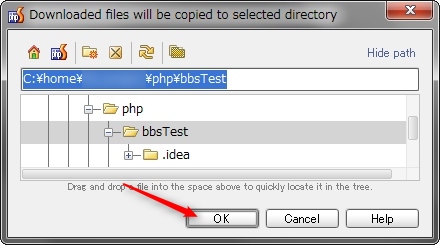
ドライバを選択したら、下に表示されたClick hereをクリックしてJDBCのドライバをダウンロードします。


場所はデフォルト(プロジェクトフォルダの下)でよいです。


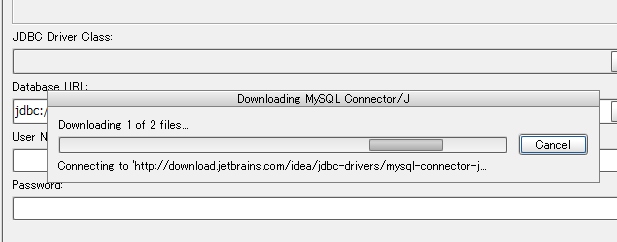
ダウンロードはしばらく時間が掛かるので待ちます…


ダウンロードが完了したらJDBCのURLを入力します。
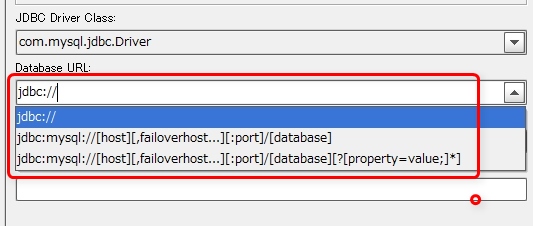
入力欄右にある”▼”をクリックすると、入力方法の書式が出てきます。


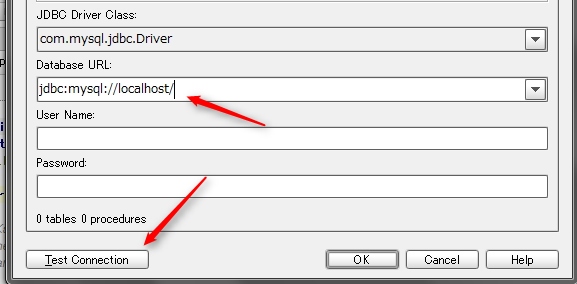
今回は同じPCに有るXAMPPのMySQLなので、”jabc:mysql://localhost/”にしておきます。
(他のPCのDBにつなぐ時や、他にユーザを作っている場合指定が必要です)
URLが入力できたら、画面右下の”Test connetion”をクリックします。


すると、DBに接続できるかのチェックが行われます。
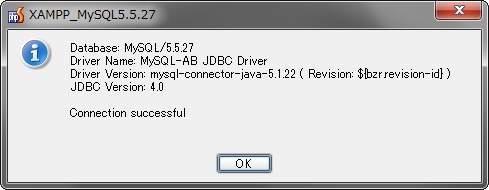
Connection successfulが出ればOKです。


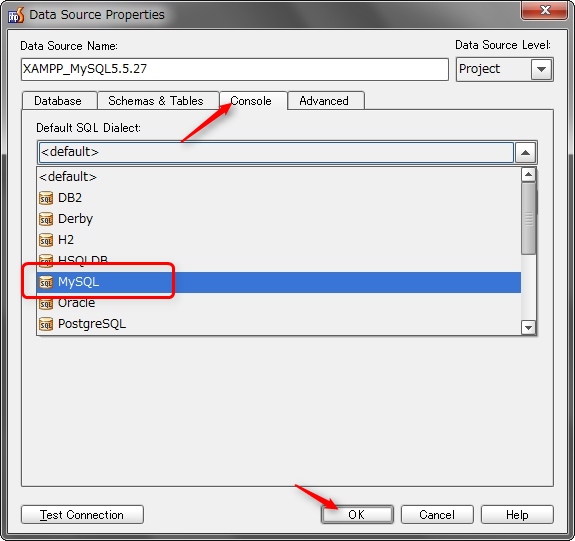
次にConsoleタブを指定してMySQLを選択し、OKをクリックします。


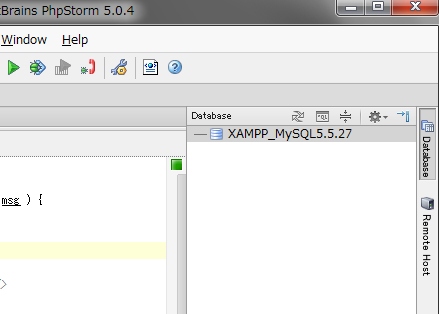
データソースの一覧に、登録したものが表示されれば、データソースの作成は完了です。


作成したデータソースに対してSQLを発行する


次は作成したデータソースを使って、実際にSQLを実行してみます。


まずは、スキーマ定義とテーブルの中身を確認してみます。
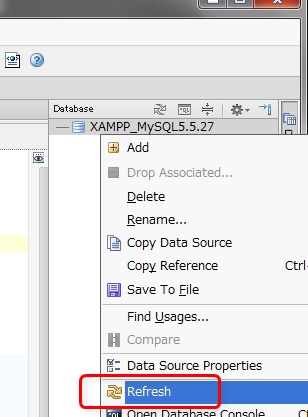
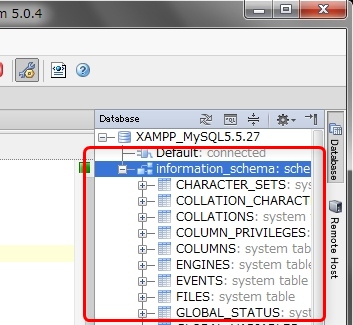
項目を右クリックしてRefreshを選択すると、テーブル一覧が表示されます。


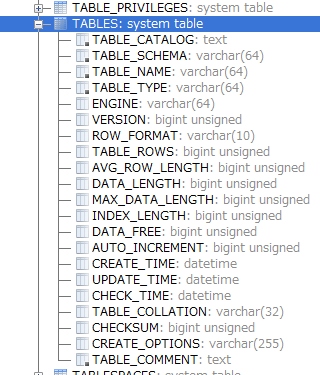
テーブルのツリーを展開すると、列とデータ型の一覧が確認できます。


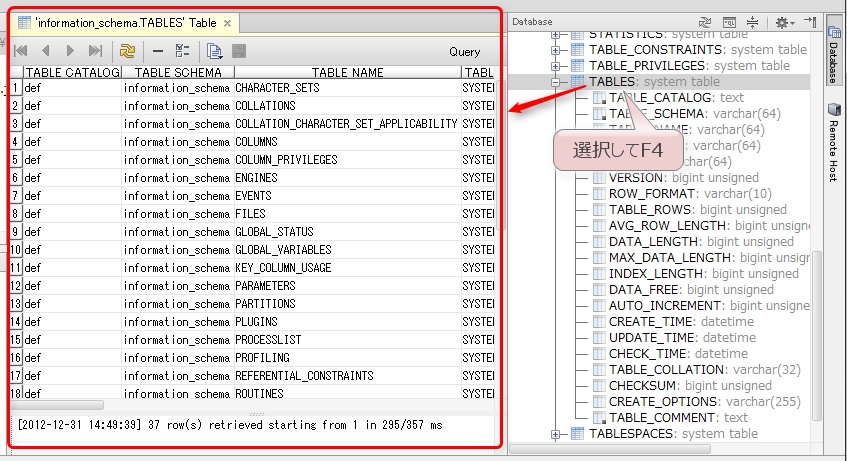
テーブルを選択してF4を押すか右クリックからEdit Tableを選択すると、データを確認できます。


次にSQLを実行して、データの検索を行います。
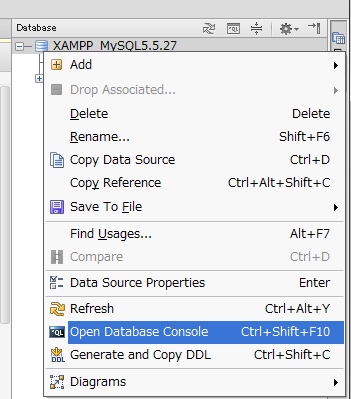
データソースを右クリックしてOpen Database Consoleを選択します。


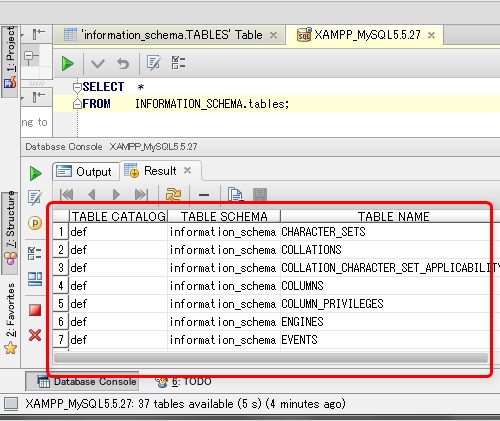
エディタの表示欄にタブが追加されるので、SQLを入力して”Ctrl+Enter”(もしくは右上にある緑の▼マークをクリック)します。


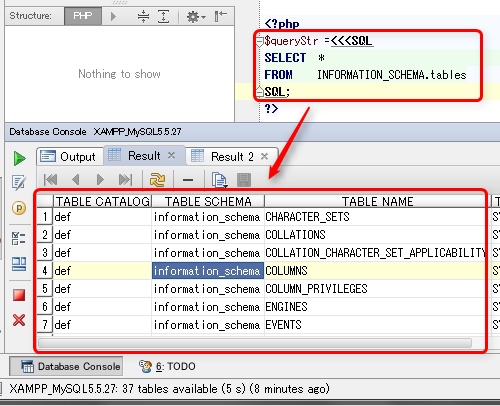
画面下のDatabase Consoleウィンドウにクエリの実行結果が表示されます。


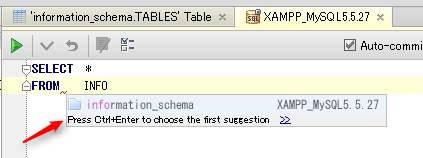
このSQL入力ウィンドウ、入力中はコードの補完(候補の表示)が行われるので便利です。
(表示されない場合はShift+Spaceを押してしてみてください)


PHPコード中のSQLを実行させる

PHPStormのDB連携はこれだけではありません。
さらに、PHPコード中に書いたSQLも実行できてしまいます。

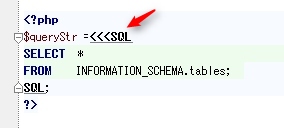
まずはヒアドキュメント内にSQLを記述します。
この際IDは以下のように”SQL”にして下さい(“SQL”以外のIDだと上手く動作しません)。


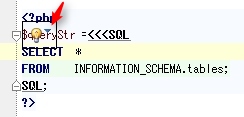
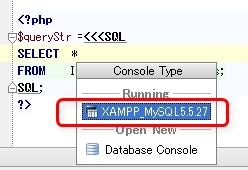
SQLの記述後、クエリにカーソルを当てると電球マークが出てくるので”▼”をクリックします。


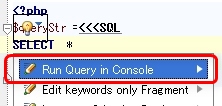
一覧からRun Query in Concoleを選択すると、Runnningの中に登録したデータソースが表示されるので、クリックします。


するとヒアドキュメント内のSQLが実行されます。


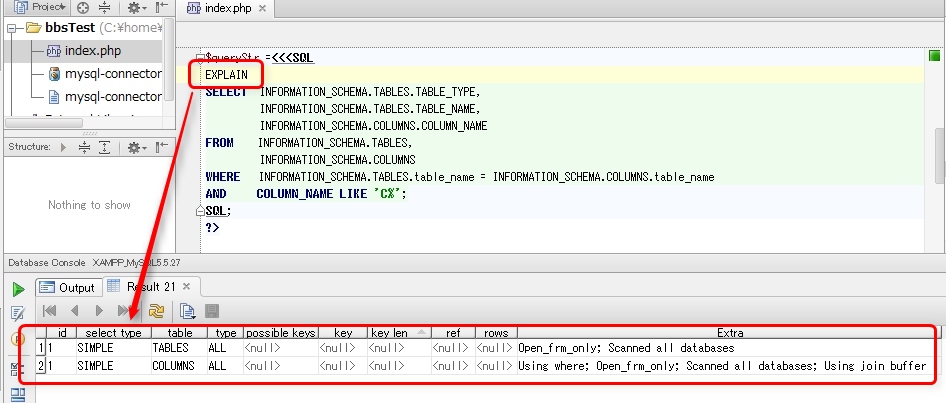
SQLの先頭に”EXPLAIN”を一時的に入力し再度実行すると、SQLの実行計画も確認可能です。
これでちゃんとIndexが使われているか?などのチェックが出来ます。


この実行結果のタブをドラッグすると、別ウィンドウに分離する事も可能です。
複数のクエリの結果を見比べる場合に便利です。

また、矢印アイコンでSQLの再実行が可能です。


[PHPStorm]コメントアウトを行うためのショートカット

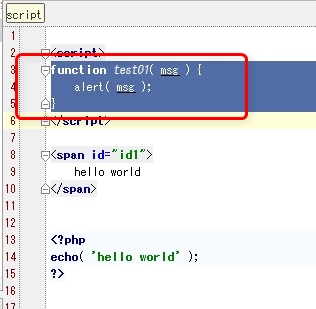
PHPStormでは、エディタで範囲選択した上で”Ctrl+/”で、コメントアウトすることが出来ます。
もう一度Ctrl+/で、コメントを外す事ができます。

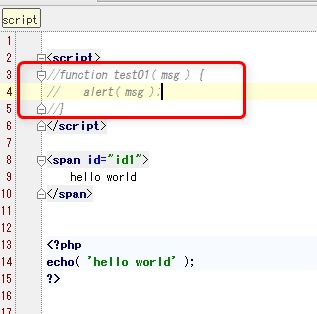
例えばこんな感じで範囲選択してCtrl+/を押すと…


このようにコメントアウトされます。


htmlタグやPHPのコードも文脈を判断して適切なコメント文字を入れてくれます。


複数行選択していても、Ctrl+/だと一行コメントになります。
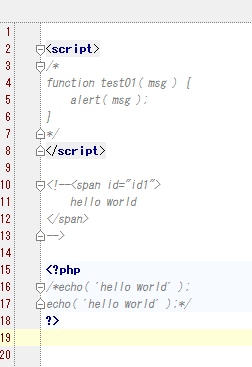
複数行を同時にコメントアウトしたい場合は、Ctrl+Shift+/を使います。

先ほどのコードを、Ctrl+Shift+/でコメントアウトすると以下のようになります。


[PHPStorm]タグの属性や,関数のヘルプを素早く調べる方法

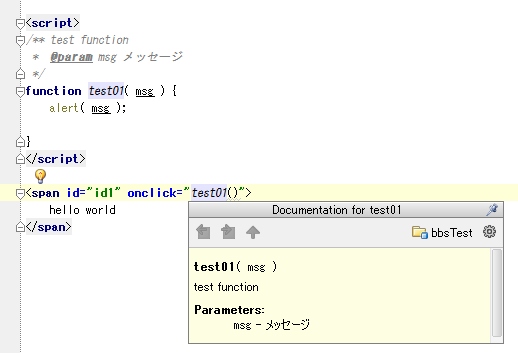
PHPStormでは、エディタで検索したいモノ(タグの属性、関数のヘルプ)にカーソルがある状態でCtrl-Qを押すと、ヘルプウィンドウが表示されます。

この機能を使用すると、素早く検索が出来るのでコーディングが捗ります。


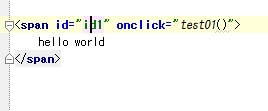
例えばhtmlタグのid属性を指定するとことでCtrl-Qを押すと…


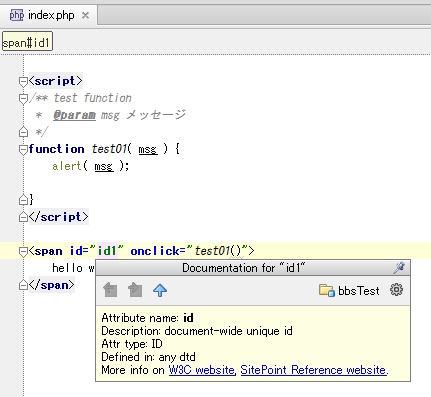
idについてのヘルプが表示されます。


自作のJavaScriptも、PHPDoc(JavaDoc)形式でコメントを書いておくとCtrl-Qで関数ヘルプが表示されます。 @paramとかをちゃんと書いておけば引数の説明も表示されるので便利です。


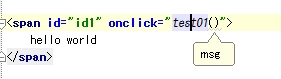
Ctrl-Pを押すと、仮引数の名前を出してくれます。


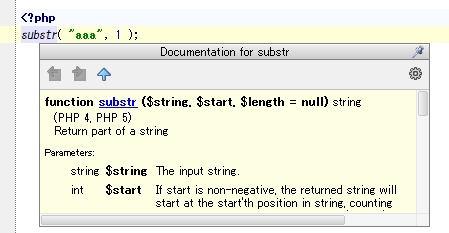
phpの関数も同様にヘルプが出ます。


表示されたウィンドウはEscキーを押すと消えてくれます。
ショートカットキーのCtrl-「Q」は、Quick Documentで覚えておくと忘れないです。

[PHPStorm]Zen-codingを使う

PHPStormでは、デフォルトでZen codingが使用可能です。

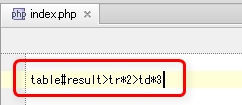
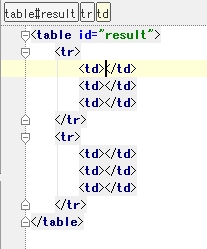
使い方は簡単で、Zen coding表記を記述し、カーソルが末尾にある状態でTabキーを押すと…


htmlタグに展開されます。


デフォルトではTabキーでZen-codingの展開が行われます。
このショートカットキーは、設定でSpaceやEnterに変更することも可能です。


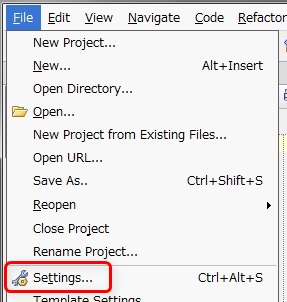
設定を変更するには、File->Settingを選択します。


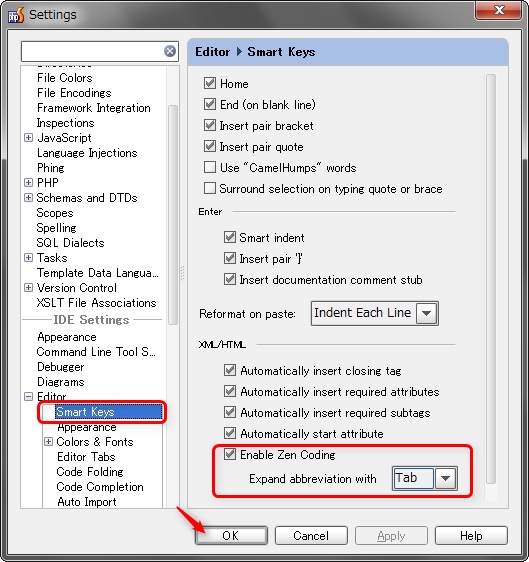
表示された設定画面の左側一覧より、IDE Setting -> Editor -> Smart Keysを選択します。
Enable Zen Codingにチェックを入れ、”Expand abbreviation with”を好みのキーに変更します。

変更後、OKボタンをクリックすればショートカットキーが変更されます。

[PHPStorm]エディタをvi(Vim)キーバインドにする

PHPStormの内蔵エディタは、IdeaVimプラグインをインストールする事でキーバインドをVim風に変更することが可能です。


IdeaVimプラグインのインストール方法

メニューより、File->Settingsを選択します。


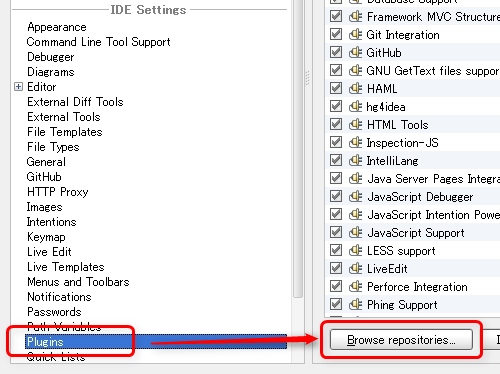
設定画面の左側から,IDE Settings -> Pluginsを選択します。
右側に表示されたBrowse repositoriesボタンをクリックします。


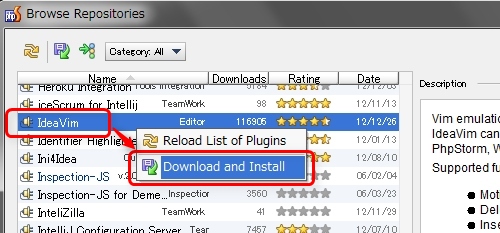
一覧からIdeaVimを選択します。
項目を右クリックしてDownload and Installを選択します。


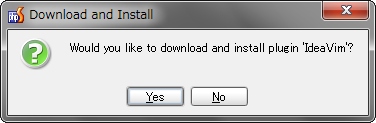
インストールしてよいですか?の確認ダイアログが表示されるので、Yesをクリックします。


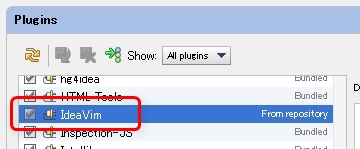
設定画面でIdeaVimが追加されており、チェックが入っている事を確認します。

OKボタンを押すと、プラグインを有効にする為にPHPStormが再起動します。


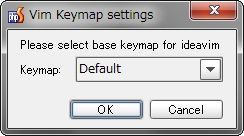
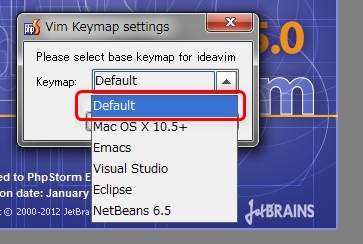
再起動後、Vim Keymap settingsダイアログが表示されます。
Windowsの場合はDefaultを選択しておくことをお勧めします。


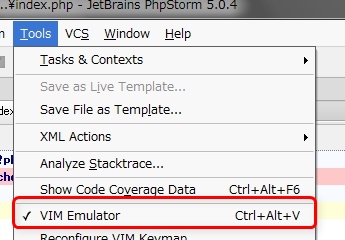
一時的にVimキーマップを無効にしたい場合は、”Ctrl+Alt+V”のショートカットキーです。
メニューのToolsからでも選択できます。


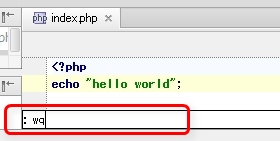
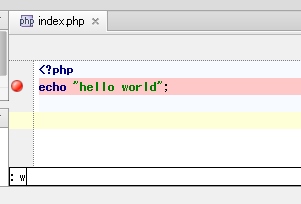
コロン”:”から始まるコマンドは、エディタの下に表示されます。


IdeaVimでサポートされている機能

IdeaVimでは全てのVimコマンドがサポートされているわけでは有りません。
何のコマンドがサポートされているかは、プラグインの説明を見ると分かります。

Vim emulation plug-in for IDEs based on the IntelliJ platform. 
IdeaVim can be used with IntelliJ IDEA, RubyMine, PyCharm, PhpStorm, WebStorm and AppCode.
Supported functionality:
    Motion keys
    Deletion/Changing
    Insert mode commands
    Marks
    Registers
    Undo/redo
    Visual mode commands
    Some Ex commands
    Some :set options
    Full Vim regexps for search and search/replace
    Macros
    Digraphs
    Command line and search history
    Vim web help


:set コマンドで使えるコマンドは以下の通りです。

'digraph'       'dg'    enable the entering of digraphs in Insert mode
'gdefault'      'gd'    the ":substitute" flag 'g' is default on
'history'       'hi'    number of command-lines that are remembered
'hlsearch'      'hls'   highlight matches with last search pattern
'ignorecase'    'ic'    ignore case in search patterns
'matchpairs'    'mps'   pairs of characters that "%" can match
'nrformats'     'nf'    number formats recognized for CTRL-A command
'scroll'        'scr'   lines to scroll with CTRL-U and CTRL-D
'scrolljump'    'sj'    minimum number of lines to scroll
'scrolloff'     'so'    minimum nr. of lines above and below cursor
'selection'     'sel'   what type of selection to use
'showmode'      'smd'   message on status line to show current mode
'sidescroll'    'ss'    minimum number of columns to scroll horizontal
'sidescrolloff' 'siso'  min. nr. of columns to left and right of cursor
'smartcase'     'scs'   no ignore case when pattern has uppercase
'undolevels'    'ul'    maximum number of changes that can be undone
'visualbell'    'vb'    use visual bell instead of beeping
'wrapscan'      'ws'    searches wrap around the end of the file


SmartGitを使ってAndroidのソースを取得する

前回Windows用のgitクライアントであるSmartGitをインストールしました。
WindowsでGUI版gitクライアントのSmartGitを使えるようにする

今回は、インストールしたSmartGitを使ってAndroidのソースを取得し、ファイルを変更後、コミットしてみます。
ちなみにgitでは、ファイルの取得(リポジトリの複製)を行う事をclone(クローン)といいます。


リポジトリからファイルを取得する


動作確認として使用するのは、AndroidのソースツリーからNFCのパッケージを取得してみます。
platform/packages/apps/Nfc – Git at Google


Androidのgitリポジトリは、パッケージを選択するとgitコマンドが表示されるので分かります。
git cloneの後にあるURLを後で使用するので、控えておいてください。

git clone https://android.googlesource.com/platform/packages/apps/Nfc


今回の例では、リポジトリのURLが”https://android.googlesource.com/platform/packages/apps/Nfc”である事が分かります。


リポジトリのURLを確認したら、SmartGitを起動します。

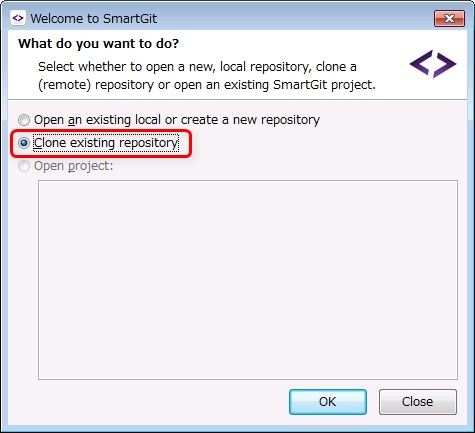
今回は既にあるgitリポジトリからファイルを取得するので、”Clone existing repository”を選択します。


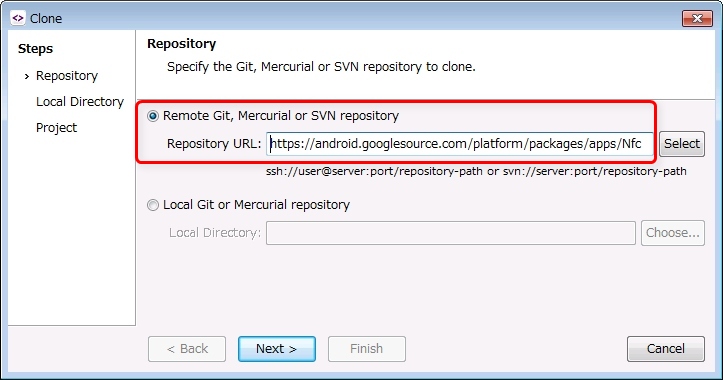
Remote Gitを選択し、URLに先ほど調べたアドレスを入れます。


https://android.googlesource.com/platform/packages/apps/Nfc


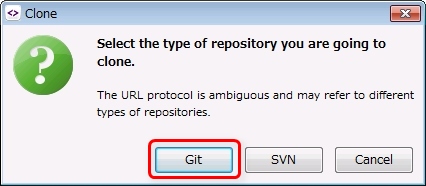
Nextをクリックすると、以下のダイアログが表示されます。


Select the type of repository you are going to clone.
 
The URL protocol is ambiguous and may refer to different types of repositories.


“URLの指定だとGit/SVNのどちらのリポジトリかを判断できないので、どっちなのかを教えてね。”という確認です。今回はGitリポジトリから持ってきたいので、Gitを選択します。


次は、リポジトリから持ってくるファイルの保存先です。
デフォルトだとインストールフォルダの下になってて、いまいちなので適当な場所に変更しておきます。


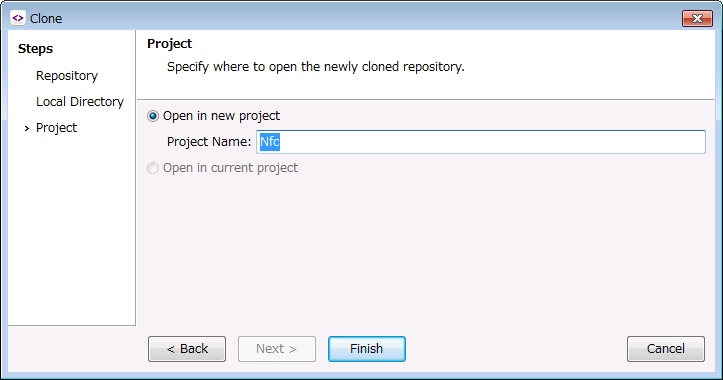
プロジェクトの指定です。
今回はデフォルトにしておきます。


Finishボタンをクリックすると、clone作業が始まります。

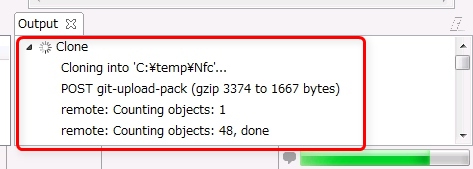
gitでのclone作業は、SVNのチェックアウトと異なり過去のリビジョンの変更履歴も含めてファイルの取得が行われます。今回サンプルとして使用したAndroidのNfcパッケージはサイズが小さいため直ぐにcloneが終わりますが、モノによっては非常に時間が掛かる可能性が有ります。

clone作業の進捗はメインウィンドウ右下のOutputウィンドウに表示されます。


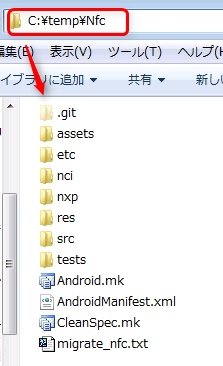
cloneが終わった後に、コピー先フォルダを見ると、確かにファイルが取得できています。
.gitはgit管理用のフォルダです。


SmartGitで取得したファイルを確認する


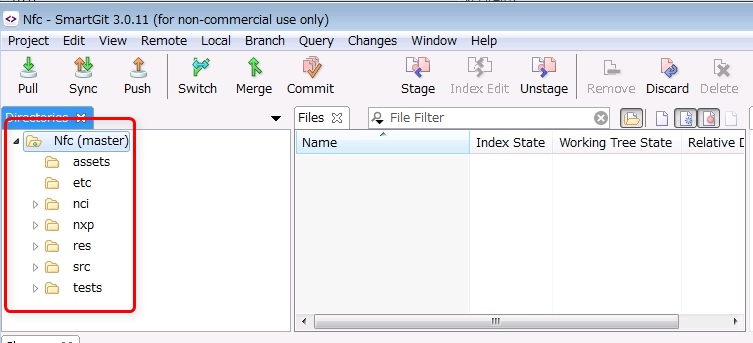
SmartGit側でファイルの状況を見ると、ツリーが表示されています。
…ですが、右側のFiles(ファイル一覧)にファイルが表示されません。
これは、SmartGitはデフォルトではリポジトリに管理されたファイルから内容の変更が行われたものだけを表示するためで、clone直後は何も変更が無いので表示されないのです。


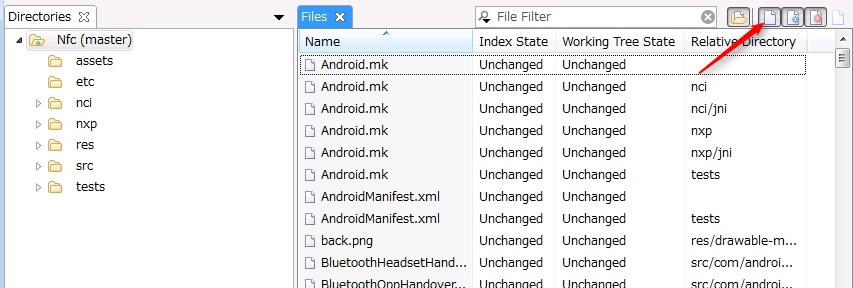
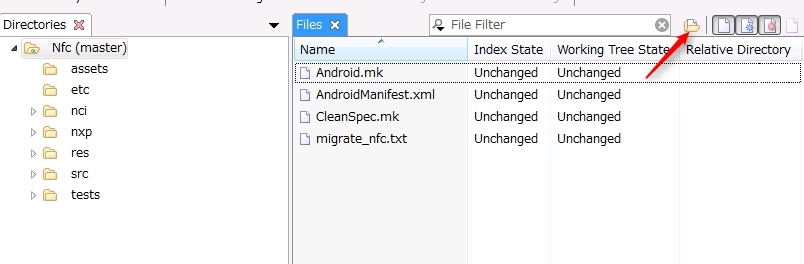
これを、無変更のファイルまで表示させるには、ウィンドウ右上に有るファイルのアイコンをクリックします。メニューから操作したい場合は、View->Show Unchanged FilesでもOKです。

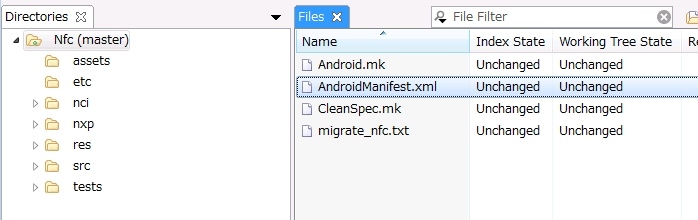
これで、無変更のファイルも表示されるようになりました。
でも、よく見ると同じファイル名が複数表示されています。

これは、SmartGitが指定したフォルダ内のサブフォルダ以下のファイルも表示しているためです。
各ファイルがどのフォルダにあるものかは、”Relative Directory”カラムに記載されています。


バージョン管理を行う際は、プロジェクト内で変更があったファイルを再帰的に全サブフォルダ分、一度に見たい場合が多いのでこのような仕様となっています。これをWindowsのExplorerみたいに該当フォルダのファイルだけ表示させたい場合は、右上にあるフォルダアイコンをクリックします。

クリックすると、該当フォルダのファイルだけが表示されるようになりました。


取得したファイルを編集&コミットしてみる


次にエディタでファイルを編集してみます。
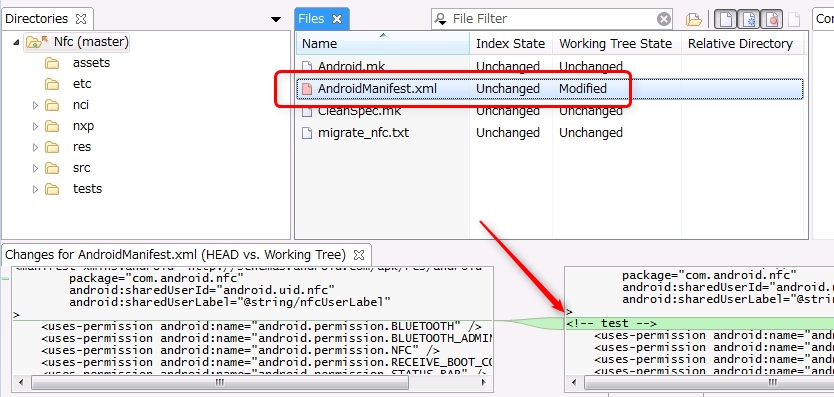
変更を保存後、SmartGitで確認すると、該当ファイルのアイコンが赤く変わります。
これにより、ファイルに変更があったことが分かります。

また、ウィンドウ下部では、ファイル変更箇所が視覚的に分かりやすく表示されています。ウィンドウ左側が変更前(=バージョン管理下での最新版)、右側が変更後の現在のファイル内容です。上記の画面だと右側が1行増えているので、ファイルに1行追加されたという事が分かります。


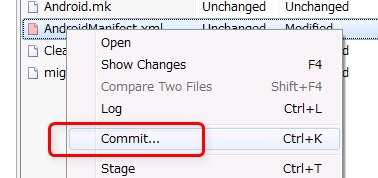
このファイルをコミットするには、ファイルを選択後、右クリック->Commitを選択します。
コミットというのは、ファイルの変更をバージョン管理のリポジトリに登録するという意味です。


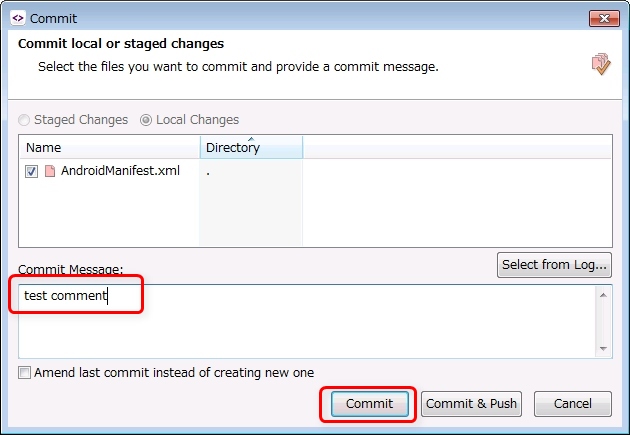
Commitウィンドウが表示されるので、コミット対象のファイルにチェックが入っている事を確認後、変更内容のメッセージを書き、Commitボタンをクリックします(ここでCommit&Pushをクリックしてしまうと、自分のリポジトリだけではなく、公開リポジトリにも変更通知が入ってしまうので誤って押さないように注意してください)。


コミットが完了すると、アイコンが白色に戻ります。
これでコミット作業は完了です。